
Chrome Browser Freezes: 12 Practical Fixes for 2026
When Chrome browser freezes, your first instinct may be to force-close it and reopen your tabs. That can get you moving again, but it rarely fixes a problem that keeps returning.
A better approach is to find out what is causing Chrome to freeze. Start with easy steps such as restarting Chrome and closing tabs you do not need. Then, check your extensions, graphics settings, browser data, and Chrome profile. Reinstall Chrome only if nothing else helps.
This guide covers Windows, macOS, and Linux desktop computers.
Quick Answer: How to Fix Chrome Browser Freezes
To fix a freezing Chrome browser:
Close unnecessary tabs, downloads, and applications.
Fully restart Chrome and your computer.
Update Chrome through Help > About Google Chrome.
Open Chrome in Guest or Incognito mode.
Disable every extension, then enable them one at a time.
Turn off graphics acceleration under Settings > System.
Clear cached files and affected site data.
Check antivirus tools, VPNs, malware, and background software.
Reset Chrome settings.
Test a new Chrome profile.
Update your operating system and graphics driver.
Reinstall Chrome only if the earlier fixes fail.
Google also recommends memory cleanup, checking extensions, restarting, turning off hardware acceleration, scanning for malware, and reinstalling Chrome as main ways to fix crashes and freezing.
Why Chrome browser freezes in the first place
Chrome can freeze for several reasons. The most common causes are:
Too many active tabs or applications
An extension using excessive memory or conflicting with a website
A problem between Chrome and the graphics driver
Corrupted cache, cookies, or site data
An incomplete or outdated Chrome installation
Antivirus, VPN, parental-control, or security software conflicts
A damaged Chrome profile
An outdated operating system
Insufficient RAM or storage
Hardware problems affecting memory, graphics, or the system drive
A freeze does not always mean Chrome is broken. Sometimes, just one webpage is overloaded. Other times, Chrome is showing that there is a bigger problem with your computer.
Diagnose the Problem Before Changing Settings
How and when Chrome freezes can help you find the right solution.
One website freezes | Site data, page script, or extension conflict | Test the site in Incognito mode |
Chrome slows down with many tabs | RAM or CPU usage | Close tabs and open Chrome Task Manager |
Freezing happens during video or scrolling | Graphics acceleration or GPU driver | Turn off graphics acceleration |
Chrome works in Guest mode | Profile or extension problem | Disable extensions or create a profile |
Chrome opens and immediately closes | Security software, malware, or damaged files | Check software conflicts and update Chrome |
The whole computer freezes | Operating system, driver, heat, RAM, or storage | Test another browser and check system health |
Chrome freezes after an update | Extension or driver incompatibility | Disable extensions and update drivers |
Only one Chrome profile freezes | Corrupted profile data | Create a clean profile |
Try one fix at a time. If you make several changes at once, the freezing might stop, but you will not know which step actually worked.
1. Force-Close Chrome Safely
Give Chrome a minute before force-closing it. A demanding page or large download may temporarily make the browser unresponsive.
When it does not recover, close it through your operating system.
On Windows
Press Ctrl + Shift + Esc.
Open the Processessection.
Select Google Chrome.
Click End task.
On macOS
Press Command + Option + Esc.
Select Google Chrome.
Click Force Quit.
Force-closing Chrome can erase all unsaved text, form entries, or work you have in the browser. Only use this option after the browser has stopped responding. Google recommends using Task Manager or Force Quit if Chrome will not close normally.
2. Restart Chrome and Your Computer
A full restart erases temporary processes, releases memory, and completes pending browser or system updates.
Do not simply close one Chrome window if other windows are still running. Close every Chrome window, then check Task Manager or Activity Monitor for any remaining Chrome processes.
Next, restart the computer.
After the restart, open Chrome with one tab. Avoid immediately restoring a large previous session. If Chrome remains stable, gradually reopen your usual pages.
Google suggests restarting both Chrome and your computer early in the troubleshooting process. Another program or an unfinished process might be causing the problem.
3. Update Google Chrome
An older version of Chrome might have bugs that have already been fixed. Updates also add important security and stability improvements.
To update Chrome:
Open the three-dot menu.
Select Help.
Choose About Google Chrome.
Allow Chrome to check for updates.
Click Relaunchwhen prompted.
If you do not see a Relaunch button, Chrome reports that you are using the latest available version for your device.
What if Chrome cannot update?
Check whether:
Your computer has enough free storage.
A firewall or antivirus tool is blocking Google’s update service.
Your device is controlled by an employer or school.
Your operating system still supports current Chrome releases.
A restart is needed to finish the update.
Security tools, parental controls, firewalls, malware, or an unsupported operating system can stop Chrome from updating correctly.
4. Free Memory and Close Resource-Heavy Chrome Processes
Chrome separates tabs, extensions, and browser functions into multiple processes. This improves stability, but several demanding pages can still consume most of your available memory.
Start by closing:
Tabs you are no longer using
Streaming video in background tabs
Browser-based games
Large cloud documents
Active downloads
Video editing or design applications
Other programs that use a lot of RAM
Google recommends closing tabs, applications, downloads, and any extensions you do not need if your computer is running low on memory.
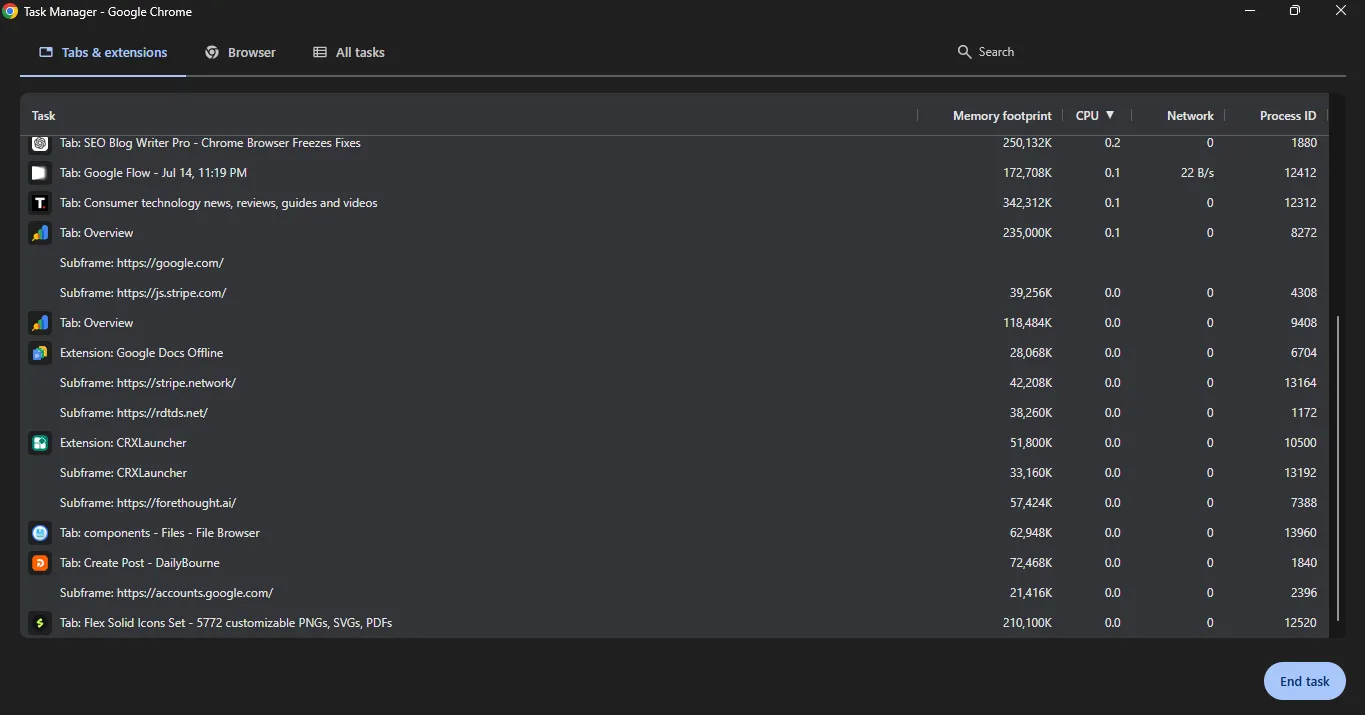
Use Chrome Task Manager
Chrome has its own Task Manager that shows which tabs and extensions are using resources.
Open Chrome.
Select the three-dot menu.
Choose More tools > Task Manager.
Select the Memorycolumn to sort the list.
Look for a tab, extension, or background page using unusually high resources.
Select it and click End process.
Be sure to save your work in the tab before ending the process. Closing it this way will shut it down right away.
Turn on Memory Saver
Chrome’s Memory Saver deactivates unused tabs so active pages have more memory.
Open Settings.
Select Performance.
Turn on Memory Saver.
Choose a deactivation level.
The Balancedoption is a good place to start. Chrome can also warn you if a tab is using too many resources. Some tabs stay active if they are playing media, sharing your screen, downloading files, showing notifications, or have unfinished form data.
5. Test Chrome Without Extensions
Extensions are one of the first things to test when Chrome freezes repeatedly.
An extension can:
Run scripts on every page.
Continue working in the background.
Conflict with another extension
Break after a Chrome update.
Use excessive CPU or memory.
Interfere with video, scrolling, forms, or page loading.
Run a quick Incognito test.
Open an Incognito window:
Windows and Linux:Ctrl + Shift + N
Mac:Command + Shift + N
Use the same websites and repeat the activity that normally causes the freeze.
Most extensions are turned off in Incognito mode unless you have allowed them. If Chrome works fine in Incognito, an extension or a profile setting is likely causing the problem.
Disable every extension
Enter chrome://extensions in the address bar.
Turn off every extension.
Restart Chrome.
Test the browser normally.
If the freezing stops, turn extensions back on one at a time. Use Chrome for a while after enabling each one.
Do not turn on several extensions at once. This makes it harder to figure out which one is causing the problem.
Chrome lets you disable or remove extensions through More > Extensions > Manage Extensions, and Google recommends removing extensions that are not needed.
Which extension should you test first?
Start with extensions that:
Read and change data on every website.
Manage tabs or browser memory.
Filter ads or page content
Add shopping or coupon features.
Scan downloads or web traffic
Change video playback
Were installed shortly before the freezing began
An extension might still cause problems even if it worked fine for months.
6. Turn Off Hardware Acceleration
Chrome uses graphics acceleration to send visual work to your computer’s GPU. This can improve video playback, animation, and rendering.
Freezing can happen if Chrome, your graphics driver, and your operating system are not working well together.
This fix is especially worth testing when Chrome freezes during:
YouTube or other video playback
Fast scrolling
Switching between tabs
Video calls
Browser games
Use across multiple monitors.
Window resizing
Full-screen mode
Black or blank screen incidents
Disable graphics acceleration
Open Chrome Settings.
Select System.
Turn off Use graphics acceleration when available.
Click Relaunch.
The wording may say “graphics acceleration” rather than “hardware acceleration” in current Chrome versions. Google lists disabling this setting as an official fix for hardware-related Chrome crashes and freezing.
Use Chrome normally after the restart.
If the problem stops, temporarily disable acceleration and update your graphics driver. You can then turn it back on and retest. Keeping it off may increase CPU usage during graphics-intensive activities, so it is better to resolve the driver conflict when possible.
7. Clear Corrupted Cache and Site Data
Chrome stores images, scripts, cookies, and other website files to make future visits faster.
These files can become outdated or damaged. A page may then freeze, reload repeatedly, fail to respond, or behave differently from the same page in another browser.
Clear data for one website first
When only one site causes trouble, remove its data instead of clearing everything.
Open Settings.
Select Privacy and security.
Open Third-party cookies.
Select See all site data and permissions.
Search for the website.
Delete its stored data.
Reopen the site.
This will sign you out of that website and remove any saved preferences.
Clear Chrome’s cache
For freezing across many websites:
Open the three-dot menu.
Select Delete browsing data.
Choose a time range.
Select Cached images and files.
Select Cookies and other site dataif the cache alone does not help.
Click Delete data.
Restart Chrome.
Chrome lets you pick the time range and types of data to delete, so you do not have to remove everything.
Avoid selecting saved passwords, autofill data, or browsing history unless you have a reason to remove them.
8. Check for Conflicting Software and Malware
Chrome may freeze because another program is monitoring, modifying, filtering, or blocking its traffic.
Possible conflicts include:
Antivirus web-protection features
Firewalls
VPN applications
Proxy software
Parental-control tools
Workplace monitoring software
Screen overlays or recording tools
Unwanted browser software
Malware
Old applications running in the background
Test software conflicts carefully
Restart the computer.
Close nonessential background applications.
Disconnect a VPN temporarily.
Pause optional browser-filtering features in third-party security software.
Test Chrome.
Turn protection back on after the test.
Do not turn off your firewall or antivirus for good. Instead, add an approved exception or update the software once you know what is causing the problem.
Chrome’s official support documentation notes that antivirus software, unwanted programs, and malware can prevent the browser from opening or updating correctly.
Check whether Chrome is managed.
Enter chrome://management in the address bar.
A managed browser may have extensions or policies that you cannot change. On a work or school computer, contact the administrator before removing software or changing security settings.
9. Reset Chrome Settings
A reset is useful when Chrome has accumulated conflicting settings, unwanted startup pages, altered permissions, or extension changes.
To reset Chrome:
Open Settings.
Select Reset settings.
Choose Restore settings to their original defaults.
Select Reset settings.
Resetting Chrome will not delete your saved bookmarks or passwords. It will restore browser settings like startup pages, pinned tabs, search settings, site permissions, cookies, extensions, and themes.
Restart Chrome and test it before changing the restored settings.
A reset is less disruptive than deleting your profile or reinstalling the browser, so try it first.
10. Create a New Chrome Profile
A Chrome profile holds your extensions, cookies, preferences, bookmarks, history, and other browser data.
If Chrome works in Guest mode but freezes in your regular session, your profile might be damaged.
Create a clean test profile.
Select your profile icon in the top-right corner.
Choose Add Chrome profile.
Create a profile with a simple name such as “Chrome Test.”
Do not sign in immediately.
Do not install extensions.
Browse normally and repeat the activity that caused the freeze.
Google supports adding separate Chrome profiles through the profile menu. Each profile keeps its browser information separate.
What the result tells you
The new profile works:
Your original profile, extension set, cookies, or settings probably caused the problem.
The new profile also freezes:
The cause is more likely to involve Chrome’s installation, graphics acceleration, security software, the operating system, or hardware.
Move to the new profile carefully.
Sign in and slowly restore your data. Do not sync all your old extensions at once. Only reinstall the extensions you still need, and test Chrome after adding each one.
Do not delete your original profile until you have backed up your bookmarks, passwords, and other important information. Deleting a Chrome profile will remove its browser data from your computer.
11. Update Your Operating System and Graphics Driver
Chrome relies on your operating system and graphics drivers. Updating just the browser might not fix a compatibility issue.
On Windows
Check:
Settings > Windows Update
Optional driver updates
Your computer manufacturer’s support application
The official Intel, AMD, or NVIDIA driver tool for your GPU
Restart after installing updates.
On macOS
Open:
System Settings > General > Software Update
Install supported macOS updates and restart the Mac.
Chrome 150 is the last version that will support macOS 12. Chrome 151 and newer will need macOS 13 or later, so computers still using Monterey will eventually stop getting Chrome updates.
On Linux
Update:
Your installed packages
Chrome
Graphics drivers
Desktop environment components
Display server packages
Use your distribution’s normal package manager rather than downloading drivers from unknown websites.
When the whole computer freezes
A system-wide lockup is more serious than a frozen browser window.
Test another browser with the same websites. If the entire computer also freezes, investigate:
Overheating
Faulty RAM
Low disk space
Failing storage
Graphics-driver crashes
Damaged system files
Power or stability problems
Reinstalling Chrome will not fix problems like bad memory, an unstable graphics card, or a damaged operating system.
12. Reinstall Google Chrome
Reinstall Chrome when:
Chrome cannot update correctly.
Important installation files appear damaged.
Chrome will not open.
Resetting settings did not help.
A new profile also freezes.
The earlier troubleshooting steps failed.
Google recommends reinstalling Chrome only after you have tried the easier crash and startup fixes.
Before uninstalling Chrome
Protect your data:
Sync or export bookmarks.
Confirm that important passwords are saved.
Save open work.
Note which extensions you need.
Keep the old profile until you know your data is safe.
Reinstall on Windows
Close every Chrome window.
Open Settings > Apps > Installed apps.
Find Google Chrome.
Select Uninstall.
Restart the computer.
Download Chrome from Google’s official website.
Install it and test before adding extensions.
Reinstall on macOS
Quit Chrome.
Open Applicationsin Finder.
Move Google Chrome to the Trash.
Restart the Mac.
Download a new Chrome installer.
Move Chrome into the Applications folder.
Test it with a clean profile.
Deleting browsing data during uninstallation creates a cleaner reinstall, but it can remove local information. Do this only after backing up anything important.
New Profile or Reinstall: Which Should You Choose?
Situation | Create a new profile | Reinstall Chrome |
Chrome works in Guest mode | Yes | Not yet |
Only one profile freezes | Yes | Usually unnecessary |
Extensions appear responsible | Yes, if disabling them fails | Not yet |
Chrome cannot update | Possibly | Yes |
Chrome will not open | Difficult | Yes |
New profile also freezes | Test briefly | Yes, after system checks |
The whole computer freezes | No | Unlikely to help |
Installation files are missing or damaged | No | Yes |
A new profile tests your browser data. Reinstallation replaces the browser’s program files. They solve different problems.
Common Troubleshooting Mistakes
Reinstalling too early
Reinstalling Chrome will not fix an extension that comes back through sync, a graphics driver conflict, or a memory problem with your whole system.
Clearing everything without a backup
Deleting profiles, passwords, cookies, or browsing data can cause more problems than the original freeze.
Changing experimental Chrome flags
Making random changes under chrome://flags can make Chrome unstable. Set experimental flags back to Defaultunless you are testing a specific issue.
Applying registry fixes from an old forum post
Registry changes may target a past Windows or graphics bug that no longer applies. They can also affect system stability.
Installing “PC cleaner” software
A third-party cleaner might delete important browser files, add background processes, or install unwanted software.
Enabling extensions too quickly
Once Chrome is stable, add your extensions back one at a time. If you add them all at once, the original problem might come back before you know what caused it.
How to Prevent Chrome From Freezing Again
Use this maintenance checklist:
Keep Chrome updated.
Install operating-system and graphics-driver updates.
Remove extensions you no longer use.
Review extension permissions.
Use Chrome’s Memory Saver setting.
Close resource-heavy tabs when finished.
Restart Chrome after long sessions.
Keep enough free storage on your computer.
Avoid unsupported operating systems.
Leave experimental flags at their default values.
Run trusted malware scans when browser behavior changes unexpectedly.
Watch Chrome’s performance alerts.
Test new extensions before adding several at once.
Chrome’s current performance controls include Memory Saver levels, tab memory information, performance alerts, site exceptions, and Energy Saver settings.
Frequently Asked Questions
Why does Chrome keep freezing?
Chrome often freezes because the computer is low on available memory, an extension is malfunctioning, cached data is corrupted, or graphics acceleration conflicts with the GPU driver. Outdated browser files, security software, profile damage, and operating-system problems can also cause it.
How do I stop Chrome from freezing?
Restart Chrome and your computer, update the browser, close heavy tabs, disable extensions, and test graphics acceleration. Clear the cache if the issue persists. Reset Chrome or create a new profile before reinstalling it.
Does clearing the Chrome cache stop freezing?
It can help when corrupted or outdated website files are causing the problem. Clear data for the affected website first. A full cache cleanup is more appropriate when several websites freeze or load incorrectly.
Why does Chrome freeze only when watching videos?
Video-related freezes often involve the GPU, graphics driver, hardware acceleration, an extension, or high system resource use. Turn off graphics acceleration, update the graphics driver, and test the video with extensions disabled.
Why does Chrome freeze while the rest of my computer still works?
That usually points to a browser-level issue, such as one overloaded tab, an extension, corrupted data, or a damaged profile. Open Chrome Task Manager and test Guest mode to narrow it down.
Why does the whole computer freeze when Chrome is open?
A complete system freeze may involve the graphics driver, overheating, faulty memory, low storage, or another operating-system problem. Test another browser and check system health before reinstalling Chrome.
Will reinstalling Chrome delete my bookmarks?
Bookmarks stored only on the computer may be lost if you remove browsing data or delete the Chrome profile. Sync or export them before uninstalling the browser.
Is it safe to turn off hardware acceleration?
Yes. Chrome can run without it. Some video-, gaming-, or graphics-heavy pages may use more CPU, but disabling this setting is a safe troubleshooting step.
How can I find the extension causing Chrome to freeze?
Disable every extension, restart Chrome, and confirm that the freezing stops. Enable one extension at a time and test the browser after each change. The extension enabled immediately before the freezing returns is the likely cause.
Should I reset Chrome or create a new profile?
Reset Chrome first when you suspect changed settings or extensions. Create a new profile when Guest mode works but your normal profile continues to freeze.
Conclusion
When the Chrome browser freezes, begin with the least disruptive fixes. Restart the browser, update it, close heavy tabs, and test without extensions. Graphics acceleration and damaged site data are the next logical checks.
Resetting Chrome or making a new profile can fix hidden configuration problems without needing to reinstall the whole browser. Only reinstall Chrome if its installation is damaged or none of the earlier steps worked.
When the whole computer becomes unresponsive, look beyond Chrome. An operating system, driver, storage, temperature, or hardware problem may be responsible.
Try the fixes one by one and test Chrome after each step. When the browser is stable, stop troubleshooting and keep the change that worked. This saves time and helps you find the real cause.